#1 Building an Isolated C2 Lab in VMware Workstation
I wanted to understand how a command and control framework actually works, the whole loop from an operator typing a command to an implant on a target carrying it out. The safe way to learn that is to never point any of it at a real network, so my first job was not Sliver at all. It was building a lab that is completely walled off from everything I care about.
What C2 is, and why I care about it
Command and control, almost always shortened to C2, is the machinery an attacker relies on once they have a foothold on a machine. That foothold on its own is not worth much. The leverage comes from a quiet, lasting line back to the attacker, where the compromised machine reaches out to infrastructure they control, waits for instructions, runs them, and reports back. Nearly every serious intrusion has a C2 layer somewhere inside it, which is why it is worth understanding from both sides, the one building it and the one trying to notice it. Understanding both is the whole point of this project.
Why none of it runs on a real network
The awkward part of learning offensive tooling is that the tooling is real. An implant is malware in every way that matters, and a live C2 channel is a real backdoor. You do not get to rehearse that anywhere near machines you care about, or anyone else’s, so the honest first move is the unglamorous one. Build a place where all of this can run, and break, without ever touching a real system. Everything here lives on a private virtual network with no path to my home network or the internet, and I can pull even the maintenance link whenever I want it fully sealed.
That isolation is not only about safety. Later in the project I generate C2 traffic and then try to detect it, and for that I want a clean room with nothing else making noise. So this first post is only about the foundation, three machines on an isolated network, built and checked before Sliver shows up in the next one.
The lab at a glance
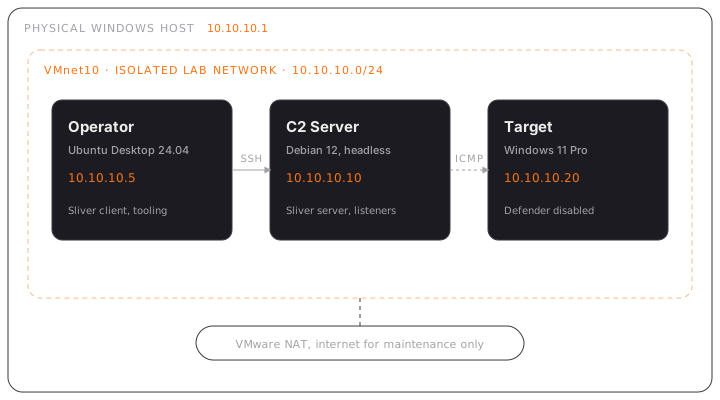
Three machines, each with one job.
- The operator workstation runs Ubuntu Desktop and is where I sit and drive tooling like Wireshark.
- The C2 server runs Debian with no desktop and holds the infrastructure.
- The target runs Windows 11 Pro and is the machine I attack.
They share a host only network called VMnet10 on 10.10.10.0/24, and that network has no path to my physical LAN or the internet. Each VM also has a second adapter on VMware NAT so I can pull updates while building, and I can switch that adapter off whenever I want the lab fully sealed.
Why it is built this way
A few decisions shaped the whole thing.
Three separate VMs instead of one, because that mirrors a real engagement where the operator, the infrastructure, and the target are always different machines. Static IPs instead of DHCP, because predictable addresses make firewall rules, listener bindings, and documentation far easier. Debian with no desktop for the C2 server, because real C2 infrastructure is minimal and headless. Windows 11 Pro rather than Home for the target, because the Pro edition includes the Group Policy editor I needed to fully disable Defender.
That last point is worth being honest about. I turn Defender off completely on the target. It is a deliberate crutch for now so I can focus on C2 fundamentals rather than evasion. Evasion is a whole phase of its own later, and it is a lot more interesting once the basics are solid.
Building the network
In the VMware Virtual Network Editor I added VMnet10 as a host only network on 10.10.10.0/24 and turned DHCP off, so every address is static. From the host, ipconfig showed the new adapter sitting at 10.10.10.1.
The C2 server
Debian went on first. I actually installed the graphical desktop by accident during setup, and rather than reinstall I kept it and just work from the terminal, accepting the small resource cost.
The first real snag was networking. Both interfaces came up without an address because NetworkManager had bound a single auto generated profile to the wrong interface. I deleted it and created two named profiles by hand, one for the NAT uplink and one for the lab network.
# Remove the broken auto profile
sudo nmcli connection delete "Wired connection 1"

# NAT interface, gets an address automatically
sudo nmcli connection add type ethernet ifname ens33 con-name nat-uplink ipv4.method auto

# Lab interface, static address on VMnet10
sudo nmcli connection add type ethernet ifname ens34 con-name lab-net ipv4.method manual ipv4.addresses 10.10.10.10/24
After that I confirmed the static address on the lab side, checked internet over NAT with a ping to deb.debian.org, and reached the server from the host over SSH. One command I keep handy is the switch that cuts the lab off from the internet on demand.
# Pull the lab offline, or bring it back
sudo nmcli connection down nat-uplink
sudo nmcli connection up nat-uplink
The operator workstation
Ubuntu Desktop was next, and it did not boot. On first start VMware threw an unrecoverable vkrSwapchain.c error and died. It turns out to be a known clash between VMware and the modern Ubuntu graphics stack when 3D acceleration is enabled. Turning off 3D acceleration in the VM display settings fixed it, and logging in with the Xorg session is a good backup if it ever returns.
The rest was calmer. Same two profile networking approach as the Debian box, a static 10.10.10.5 on the lab side, and Wireshark installed with non root capture enabled so I can watch traffic later without running as root.
The Windows target
Windows 11 fights you in a few small ways during setup. It really wants a Microsoft account, and there is no obvious way past it. The trick is to open a shell at the network screen with Shift and F10, then run a single command that unlocks the local account path.
start ms-cxh:localonlyFrom there I set a static address and allowed inbound ping so the Linux VMs could reach it, since Windows blocks ICMP by default on a new network.
# Static IP on the lab adapter
New-NetIPAddress -InterfaceAlias "Ethernet1" -IPAddress 10.10.10.20 -PrefixLength 24

# Allow inbound ping for lab connectivity checks
New-NetFirewallRule -DisplayName "Allow ICMP v4 (Lab)" -Protocol ICMPv4 -Direction Inbound -Action Allow
Turning Defender off, properly
This took three layers, and the reason is Tamper Protection. It actively reverts the easy methods, so you have to disable it first, by hand, in the Windows Security app. Only then do Group Policy and a registry fallback actually stick.
# 1. Turn Tamper Protection off in the Windows Security app first (GUI only)

# 2. Disable the monitoring subsystems
Set-MpPreference -DisableRealtimeMonitoring $true
Set-MpPreference -DisableIOAVProtection $true
Set-MpPreference -DisableBehaviorMonitoring $true

# 3. Confirm the state
Get-MpComputerStatus | Select-Object AntivirusEnabled, RealTimeProtectionEnabled
Once Get-MpComputerStatus reported real time protection as false, I took a clean snapshot so I always have a known good starting point to roll back to.
What broke, and what it taught me
The build was mostly a series of small fights, and the fights were the useful part.
- Both Debian NICs came up dead because NetworkManager guessed wrong. Naming the profiles myself made the setup explicit and repeatable.
- The Ubuntu Vulkan crash looked scary but was a one setting fix. Not every unrecoverable error is unrecoverable.
- Ping from Linux to Windows failed silently until I added the ICMP rule, a good reminder that the Windows firewall says no by default.
- Defender kept switching itself back on until I understood that Tamper Protection sits above everything else and has to go first.
None of this is the exciting part of C2 work, but a lab you trust is what makes the exciting part possible. When something misbehaves in a later phase I want to know it is the tooling, not a shaky foundation.
What is next
With the three machines talking, the internet on a switch I control, and a clean snapshot saved, the foundation is done. The next phase is the one I was actually waiting for, installing Sliver on the C2 server and standing up a first session on the Windows target.